



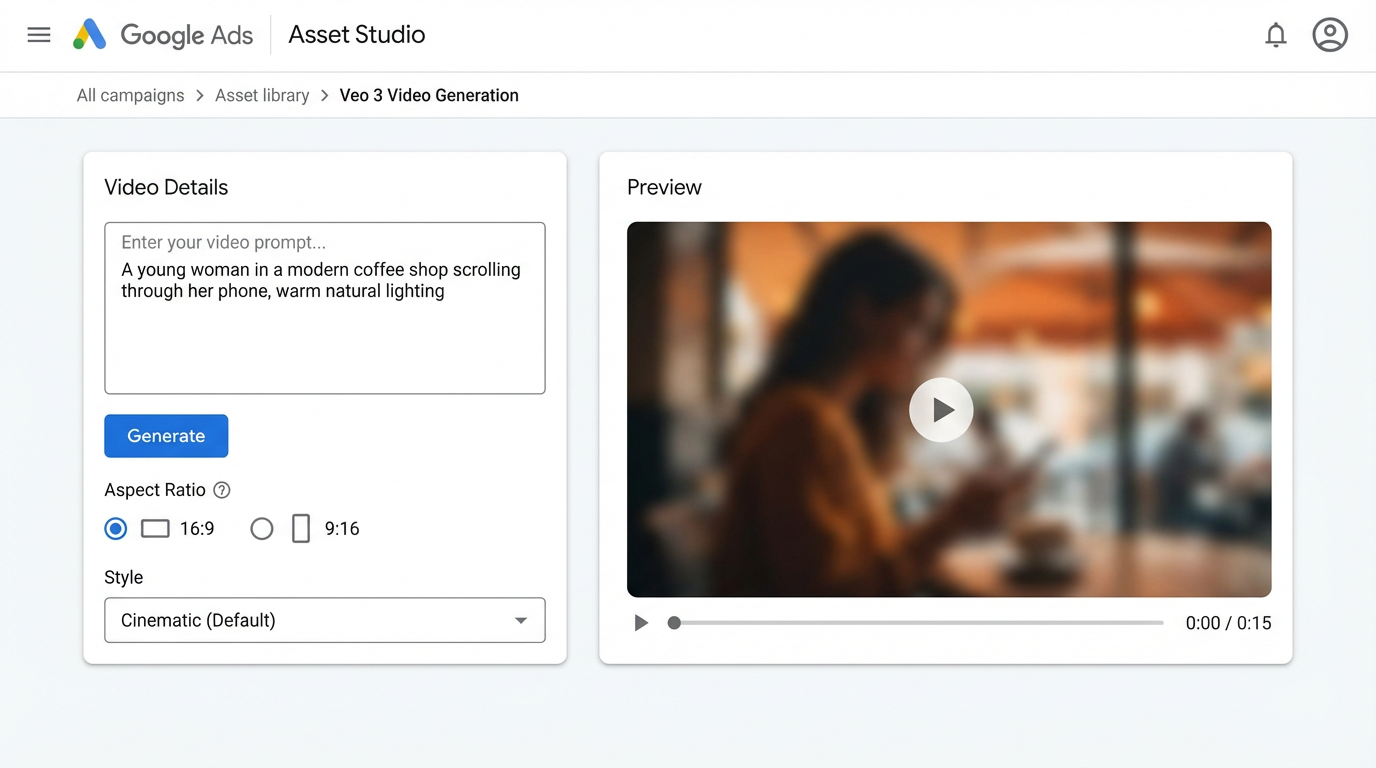
In February 2026, Google officially expanded Veo 3 — its third-generation AI video model built by DeepMind — into Ads Asset Studio inside Google Ads. This means advertisers can now generate complete video ads from text descriptions without leaving their Google Ads dashboard.
For performance marketers who run dozens of creatives a week, this is a genuine workflow shift. No more outsourcing to editors, no more waiting days for a 15-second clip. Let’s break down what Veo 3 can actually do, how to use it, and why it matters.
What Is Google Veo 3?
Veo 3 is Google DeepMind’s text-to-video generation model. Unlike basic animation or slideshow tools, Veo 3 produces realistic video clips with natural motion, lighting, and — notably — synchronized audio, including dialogue, sound effects, and ambient sounds.
The model was first made available to developers through the Gemini API and Vertex AI in mid-2025. The newest version, Veo 3.1, adds improved cinematic style control, image-to-video capabilities, and native audio generation. But the real game-changer came when Google integrated Veo 3 directly into Ads Asset Studio — the creative hub inside every Google Ads account.
What Can You Do with Veo 3 in Ads Asset Studio?
Here’s what the integration actually enables:
- Text-to-video generation — Type a description of your ad concept, and Veo 3 produces a complete video clip with visuals, motion, and audio.
- Multiple aspect ratios — Generate in 16:9 (landscape for YouTube) or 9:16 (vertical for Shorts, mobile placements).
- High resolution output — Videos are generated at up to 720p or 1080p, with 4K available through the API.
- Audio included — Veo 3 generates synchronized sound: music, effects, ambient noise, even character dialogue.
- Iterate without external tools — Refine your prompts and regenerate directly inside Google Ads. No need to export, edit in Premiere, and re-upload.
- Use across ad formats — Generated videos work on YouTube placements (in-stream, in-feed, Shorts) and Google Display Network inventory.
Google reported a 3x increase in Gemini-generated ad assets during 2025, with nearly 70 million creative assets generated in Q4 alone. The Veo 3 integration is clearly designed to push that number even higher.
How to Use Veo 3 in Google Ads: Step by Step
Step 1: Access Asset Studio
In your Google Ads account, navigate to Tools → Asset Studio. This is Google’s centralized hub for creating, editing, and managing ad assets.
Step 2: Choose Video Generation
Select the video creation option within Asset Studio. You’ll see the AI-powered generation interface where you can enter text prompts.
Step 3: Write Your Prompt
Describe the video you want. Include details about:
- The scene and setting
- Characters and their appearance
- Camera angles and movement
- Actions and motion
- Audio and sound cues
- Visual style (realistic, cinematic, animated, etc.)
Step 4: Generate and Review
Veo 3 produces a video clip (typically 5–8 seconds). Preview it, and if it doesn’t match your vision — adjust the prompt and regenerate.
Step 5: Save and Deploy
Save the video to your Asset Library and use it in your campaigns across YouTube and GDN placements.
Prompt Writing Best Practices for Better Video Ads
The quality of your output depends entirely on how well you write the prompt. Google DeepMind’s official prompt guide recommends structuring your descriptions using these elements:
Be Specific, Not Vague
Instead of “a woman holding a phone,” write: “A close-up shot of a young woman in her twenties with wavy brown hair, smiling as she scrolls through an app on her phone in a bright, modern coffee shop. Warm natural lighting from a large window behind her.”
Define the Camera Work
Specify shot type (close-up, wide, medium), camera movement (pan, dolly, static), and angle (low-angle, eye-level, aerial). This gives you cinematic control over the final result.
One Scene Per Prompt
For short-form video ads, focus each prompt on a single, clear moment. Trying to cram an entire story arc into one 8-second clip leads to chaotic results.
Include Audio Direction
Veo 3 generates audio natively. Add sound cues: “Upbeat electronic background music. Sound of a notification chime. The woman says: This is exactly what I needed.”
Set the Visual Style
State the aesthetic upfront: cinematic, documentary-style, animated, stop-motion, or shot on 35mm film. This anchors the entire output.
Why This Matters for Affiliate Marketers
If you’re running paid traffic — especially on YouTube or GDN — video has always been the highest-converting format. But video production has also been the biggest bottleneck: expensive, slow, and hard to scale.
Veo 3 in Ads Asset Studio changes the economics of video advertising:
- Speed — Generate a new video creative in minutes, not days. Test more angles, hooks, and concepts without waiting on production.
- Cost — No videographer, no editor, no stock footage licenses. Your creative budget goes further.
- Scale — Need 20 variations of a video ad to A/B test? Write 20 different prompts. The turnaround is the same whether you make one or fifty.
- Iteration speed — Spot a winning angle in your campaign data? Generate a new batch of creatives around that angle in the same session.
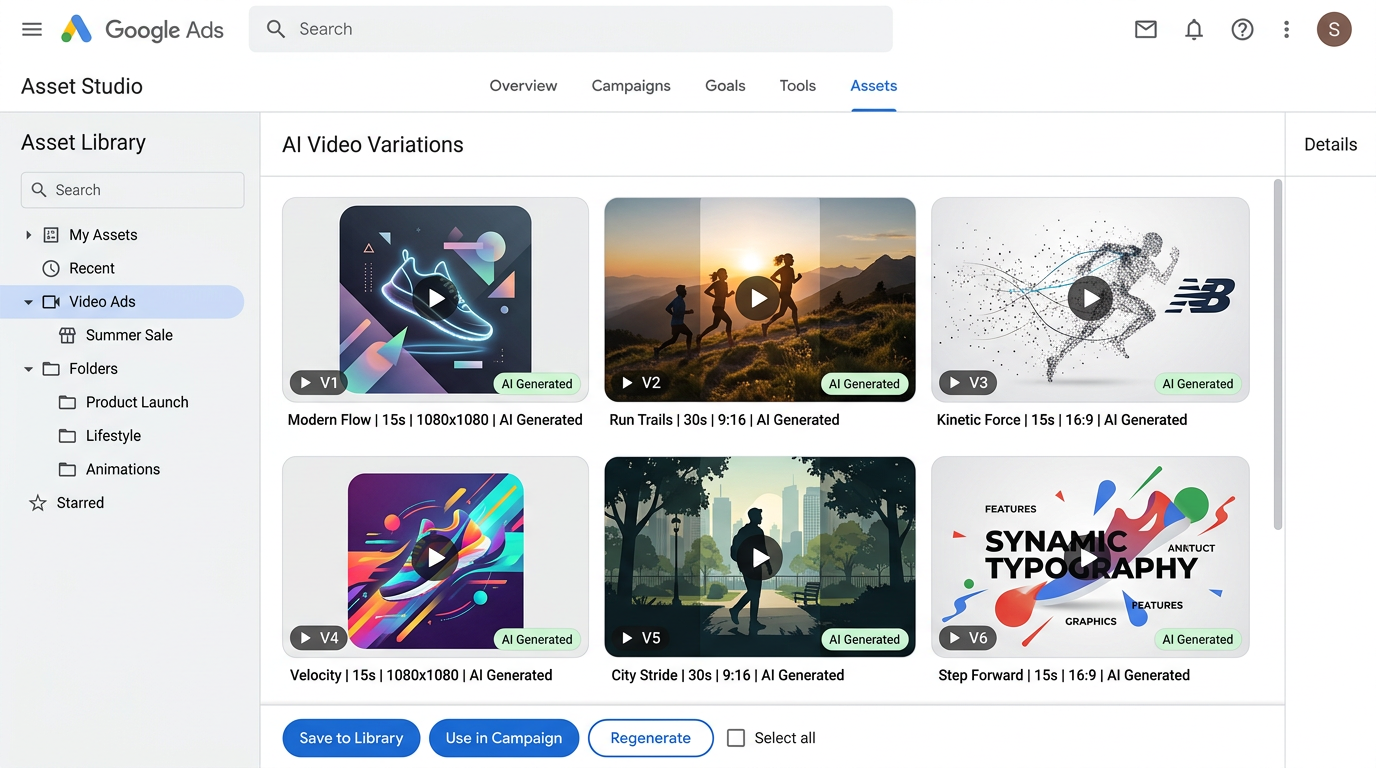
For affiliates running mVAS offers or getting started with CPA campaigns, the ability to rapidly produce video ads opens up YouTube as a traffic source that was previously reserved for teams with production budgets.
Pricing and Availability
Within Ads Asset Studio, Veo 3 video generation is available as part of the Google Ads platform at no additional cost to advertisers (beyond standard ad spend).
For developers and teams using the Gemini API or Vertex AI directly, pricing is:
- Veo 3 Fast — $0.40 per second of generated video (optimized for speed)
- Veo 3 Standard — $0.75 per second of generated video (higher quality)
The feature is rolling out globally. If you don’t see it in your Asset Studio yet, it should become available in the coming weeks as Google completes the rollout.
Limitations to Keep in Mind
Veo 3 is impressive, but it’s not a full video production studio — yet:
- Clip length — Generated clips are typically 5–8 seconds. For longer ads, you’ll need to combine multiple clips or use Google’s Flow platform to chain scenes.
- Character consistency — Maintaining the same character across multiple separate generations can be tricky. Using reference images (via image-to-video) helps, but isn’t perfect.
- Text in video — The model can struggle with rendering on-screen text clearly. Avoid relying on text overlays in your prompts.
- Brand assets — You can’t upload your logo and have it seamlessly integrated. Brand elements still require post-production or overlay tools.
- SynthID watermark — All AI-generated content includes Google’s invisible SynthID digital watermark, identifying it as AI-generated.
The Bottom Line
Google putting Veo 3 inside Ads Asset Studio is a clear signal: AI-generated video ads are no longer experimental — they’re becoming a standard part of the advertising toolkit.
For affiliate marketers and media buyers, this is an opportunity to add video to your creative mix without the traditional production overhead. The winners will be those who learn to write strong prompts and integrate AI video into their testing workflows early.
Start experimenting now — open Asset Studio in your Google Ads account and see what Veo 3 can do for your campaigns.
Ready to scale your affiliate campaigns with the best offers and tools? Sign up with Affiliate Dragons and get access to top-performing offers across mVAS, sweepstakes, and more.